Getting Docker Installed and Actually Using It
I wrote a bit about what Docker is and why it matters in my last post, if you haven't read that yet it's worth a quick look for the context. This one is more practical. We're getting Docker installed and running your first container. I'll be focusing on Ubuntu 22.04 here since that's what I'm running, but the concepts translate across platforms easily enough.
Installation
Nothing complicated here. First things first, make sure your system is up to date before you install anything:
sudo apt update && sudo apt upgrade -yThen install Docker:
sudo apt install docker.io -yStart the service and set it to run on boot:
sudo systemctl start docker
sudo systemctl enable docker
Verify it's installed and the version looks sane:
docker --versionThat's it. Honestly the installation is one of the least interesting parts of Docker, it just works. No dependency hell, no complicated setup. If you're used to wrestling with other software installations you might actually be a bit suspicious of how straightforward it is.
One thing worth doing at this point if you don't want to prefix every Docker command with sudo, add your user to the docker group:
sudo usermod -aG docker $USERLog out and back in and you're good. Small quality of life thing but you'll thank yourself later when you're running commands repeatedly.
Running your first container
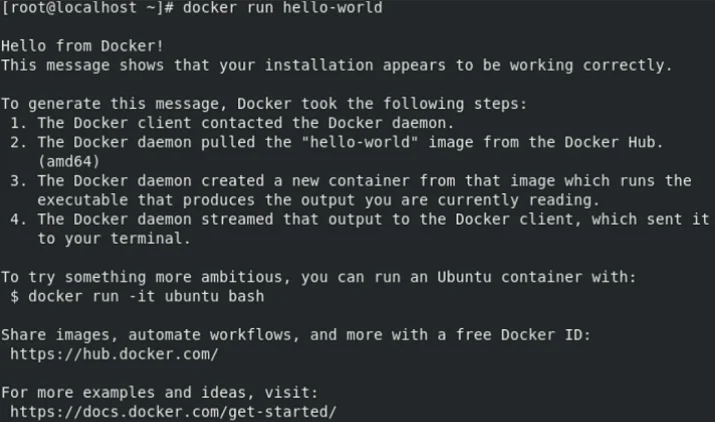
Right, let's actually run something. The classic starting point is the hello-world container:
docker run hello-worldWhat happens when you run this is worth understanding rather than just watching it work. Docker first checks whether the hello-world image exists locally. It doesn't, so it pulls it from Docker Hub automatically. Then it creates a container from that image, runs it, and you get the output. The container then exits because it has nothing left to do.
That pull-run flow is the core of how Docker works in practice. You reference an image, Docker handles getting it if it isn't already local, and you get a running container. The image is cached locally after the first pull so subsequent runs are instant.
A more useful example
Hello world is fine for confirming things work but let's run something with a bit more substance. Spinning up an Nginx web server:
docker run -d -p 8080:80 nginxA couple of things happening in that command worth noting. The -d flag runs the container in detached mode, it runs in the background rather than blocking your terminal. The -p 8080:80 maps port 8080 on your host to port 80 inside the container. Hit http://localhost:8080 in a browser and you'll get the Nginx welcome page.
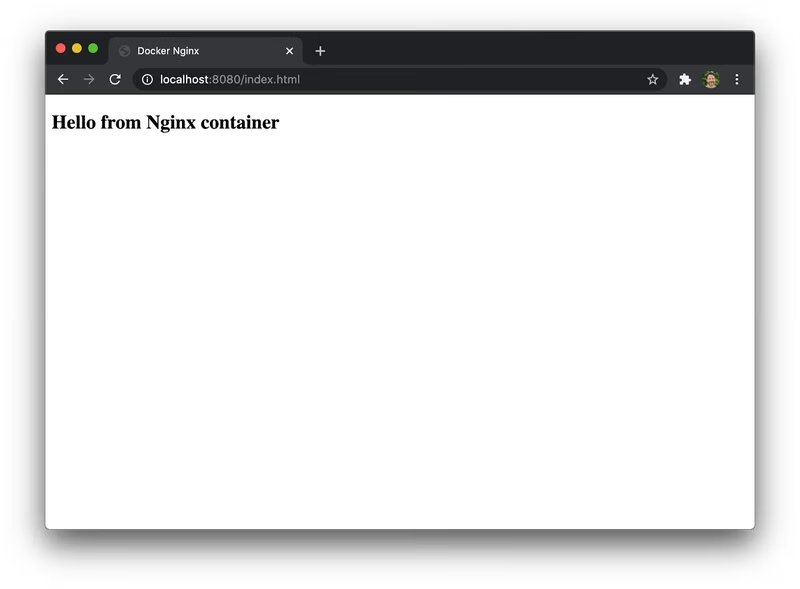
You've just stood up a web server in seconds without installing Nginx on your host machine, without touching any config files, without worrying about whether your system has the right dependencies. That's the point I was making in the last post about Docker changing how you think about deployments, this is what it looks like in practice.
To see your running containers:
docker psTo stop the container, grab the container ID from that output and:
docker stop <container_id>A few commands worth knowing from the start
You'll use these constantly so worth getting familiar early:
docker ps           # running containers
docker ps -a        # all containers including stopped ones
docker images       # locally cached images
docker pull <image> # pull an image without running it
docker rm <id>      # remove a stopped container
docker rmi <image>  # remove an image
docker logs <id>    # view container output/logs
docker exec -it <id> bash  # get a shell inside a running container
That last one, docker exec, is something you'll find yourself using a lot for debugging. Being able to drop into a running container and poke around is incredibly useful when something isn't behaving the way you expect.
What's next
Getting Docker installed and running basic containers is straightforward enough, but this is really just scratching the surface. Where things get genuinely interesting is when you start writing your own Dockerfiles to build custom images, and when you bring Docker Compose in to manage multi-container applications. That's where the real workflow benefits start to show up and where most real-world use cases live.