How to Install CSF
If you're running a public-facing server and you're not running a firewall you already know you shouldn't be doing that. CSF, ConfigServer Security & Firewall, is what I've been using for a while now and it's become a standard part of my server setup process. This post covers what it is, how it works under the hood, and how to get it installed and configured.
What CSF actually is
CSF is a firewall application that sits on top of iptables, which if you've spent any time in Linux networking you're already familiar with. Rather than manually writing and managing iptables rules directly, which gets tedious and error-prone fast, CSF gives you a structured, manageable interface on top of it. It handles the rule management, log monitoring, and threat response in a way that scales properly without becoming a maintenance burden.
Beyond basic packet filtering CSF also includes Login Failure Daemon (lfd), which runs alongside it and monitors logs for suspicious activity. Repeated failed SSH logins, brute force attempts, port scans, lfd picks these up and can automatically block offending IPs. If you've ever watched auth logs on a public server you'll know how much noise there is constantly, and having automated responses to that is just sensible.
It's worth being clear that CSF is a software firewall operating at the OS level, not a replacement for network-level firewall rules on your infrastructure. Use both. They serve different purposes and complement each other.
Installation
Straightforward process. Connect to your server and pull the package down:
sudo wget https://download.configserver.com/csf.tgzExtract it:
sudo tar -xzf csf.tgzMove into the directory and run the install script:
cd csf
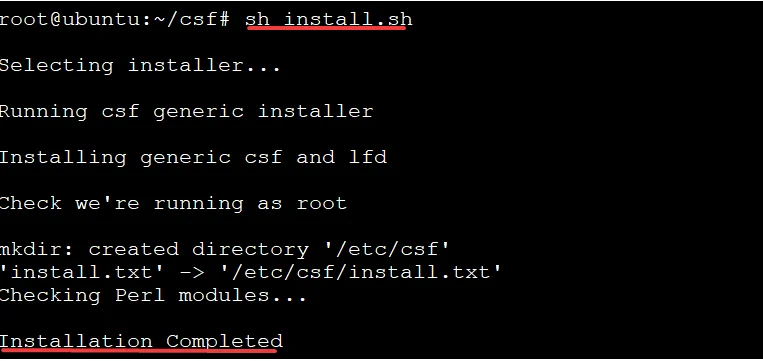
sudo sh install.sh
That's the installation done. CSF will be running in test mode by default after install, which means it's logging what it would block but not actually blocking anything yet. That's intentional, you want to verify your configuration is correct before you start actively dropping traffic, especially if you're doing this on a remote server you can't physically access. Locking yourself out over SSH because you misconfigured a port rule is not a fun afternoon.
Basic configuration
The main config file is at /etc/csf/csf.conf and it's where you'll spend most of your time:
sudo nano /etc/csf/csf.confThe key settings to get right first:
TCP_IN and TCP_OUT define which ports are allowed for incoming and outgoing traffic respectively. Go through these carefully and only open what you actually need. The principle of least privilege applies here, if a port doesn't need to be open, it shouldn't be. Default has a reasonable set but you'll want to tailor it to your specific setup.
If you've changed your SSH port from the default 22, which you should have, make sure LF_SSHD reflects that. Missing this is an easy way to get yourself locked out when you go to production mode.
LF_EMAIL_ALERT is worth setting up with a valid email address. Getting alerts when lfd blocks something or detects suspicious activity is useful, especially early on when you're getting a feel for the noise level on your particular server.
After making changes restart CSF to apply them:
sudo csf -rTesting before going live
While still in test mode, verify your port configuration is working the way you expect. Try connecting on ports that should be blocked and confirm they are. Check the logs to see what CSF is logging:
sudo tail -f /var/log/lfd.logGet comfortable with what normal traffic looks like in those logs before you flip to production mode. It makes it much easier to spot something actually suspicious later.
Going to production mode
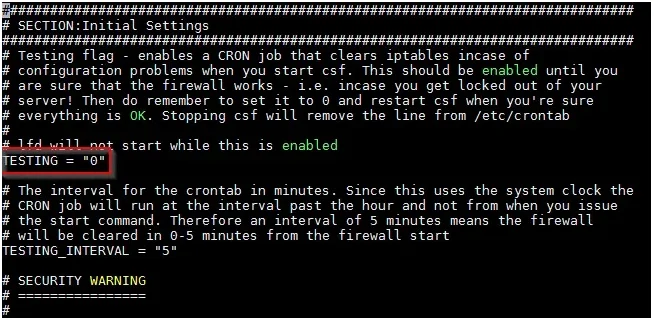
Once you're satisfied the configuration is correct, open the config file again and find the TESTING line:
TESTING = "1"Change it to:
TESTING = "0"Save, restart CSF:
sudo csf -rCSF is now actively enforcing rules. From this point lfd is monitoring logs and will start automatically blocking IPs that trigger your configured thresholds.
A few things worth knowing
If you ever need to quickly allow or block a specific IP manually:
sudo csf -a <ip>   # allow
sudo csf -d <ip>   # deny
And to remove those manual entries:
sudo csf -ar <ip>  # remove from allow
sudo csf -dr <ip>  # remove from deny
Also worth knowing, if you're running cPanel or Directadmin, CSF has integrations for both that add a UI for managing it through the control panel. Not something I use personally but useful to know if that's your environment.
This is a solid baseline setup. CSF has a lot of depth to it beyond what I've covered here, there's quite a bit you can do with the more advanced lfd settings, cluster configuration if you're managing multiple servers, and integration with threat intelligence feeds. But what's described above is enough to get a properly functioning firewall running on a fresh server, which is the important part.